
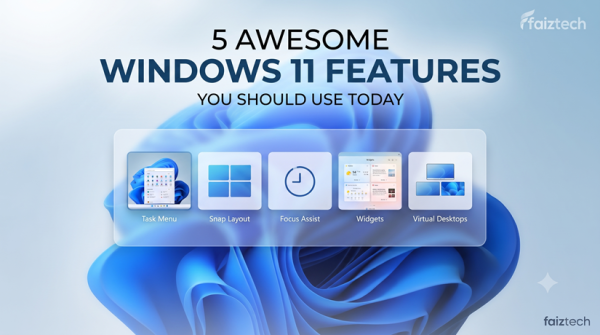
Microsoft’s latest operating system has introduced many powerful tools designed to make everyday computing easier, faster, and more productive. However, many users only use basic functions and never explore the advanced options available inside their computers.
The latest Windows 11 Features are designed for everyone, including students, professionals, freelancers, gamers, and content creators. These tools can help you save time, improve workflow, organize your desktop, and complete tasks more efficiently.
Unlike older versions of Windows, Windows 11 focuses heavily on productivity, artificial intelligence, security, and a smoother user experience. Many useful features are already installed, meaning you do not need expensive third-party applications.
In this guide, we will explore the most useful Windows 11 Features that you should start using today. These features can completely change how you interact with your computer.
Why Windows 11 Is Different From Previous Versions
Windows has been the world’s most popular desktop operating system for decades. With Windows 11, Microsoft redesigned the user experience with a cleaner interface, improved performance, and smarter productivity tools.

The biggest improvements include:
- Better multitasking capabilities
- Improved security protection
- Faster file management
- AI-powered tools
- Better gaming performance
- Enhanced touch and tablet support
According to Microsoft, Windows 11 was created to provide users with a more personalized and productive computing experience.
You can learn more about official Windows updates here:
Microsoft Windows official website:
https://www.microsoft.com/windows
The modern workplace requires users to manage multiple tasks simultaneously. Whether you are editing documents, attending online meetings, creating videos, or researching information, the right tools can make your work much easier.
This is why learning Windows 11 Features is becoming increasingly important.
1. Snap Layouts – The Best Feature for Multitasking
One of the most impressive productivity improvements in Windows 11 is Snap Layouts.
Many users work with multiple applications every day. For example:
- A browser for research
- Microsoft Word for writing
- File Explorer for documents
- Communication apps for meetings
Managing these windows manually can waste time.
Snap Layouts solves this problem by allowing you to arrange multiple applications perfectly on your screen.
Simply move your mouse over the maximize button of any application, and Windows will display different layout options.
You can choose:
- Two windows side by side
- Three-column layouts
- Four-section layouts
- Custom arrangements
Windows automatically organizes your applications.
This makes multitasking much easier.
For example, a blogger can keep:
- Research websites on one side
- Writing software on another side
A programmer can view:
- Code editor
- Documentation
- Browser preview
A student can watch lectures while taking notes.
This feature is especially useful for people using laptops because screen space is limited.
How Snap Groups Improve Your Workflow
Another improvement connected with Snap Layouts is Snap Groups.
Imagine you have arranged several applications perfectly. Suddenly, you open another program and lose your setup.
With Snap Groups, Windows remembers your previous arrangement.
When you return, your workspace can be restored quickly.
This saves valuable time every day.
Professional users often spend hours switching between applications. A feature like this reduces unnecessary actions and keeps everything organized.
Snap Layouts is one of the most practical Windows 11 Features because it directly improves productivity.
2. Voice Typing – Write Faster Without Using Your Keyboard
Typing long documents can be tiring.
Many people spend hours writing:
- Emails
- Articles
- Reports
- Assignments
- Social media posts
Windows 11 includes a powerful Voice Typing tool that converts your speech into text.
To activate it, press:
Windows Key + H
A microphone appears, and you can start speaking.
Windows automatically converts your voice into written words.
This technology has improved significantly compared to previous versions.
Voice Typing is useful for:
Content Creators
Writers and YouTubers can quickly create scripts by speaking their ideas instead of typing every sentence.
Students
Students can prepare notes and assignments faster.
Professionals
Employees can create emails and documents more efficiently.
People With Limited Typing Speed
Voice input provides another way to interact with a computer.
Modern artificial intelligence has made speech recognition more accurate, making this one of the most useful Windows 11 Features for productivity.
Tips to Get Better Results With Voice Typing
To improve accuracy:
Speak Clearly
Natural and clear speech gives better results.
Use a Good Microphone
A quality microphone reduces background noise.
Use Commands
Windows supports voice commands such as:
- New paragraph
- Delete that
- Period
- Question mark
These commands help format your text quickly.
For more information about Microsoft’s speech features, visit:
3. Focus Sessions – Improve Concentration and Productivity
Modern computers provide unlimited possibilities, but they also create many distractions.
Notifications, messages, websites, and social media can reduce productivity.
Windows 11 introduced Focus Sessions to help users concentrate on important tasks.
Focus Sessions are available inside the Clock application.
Users can create dedicated work periods and reduce distractions.
For example:
- 25 minutes of focused work
- Short break
- Another productivity session
This method is similar to the Pomodoro productivity technique.
Focus Sessions are useful for:
- Students preparing exams
- Developers writing code
- Writers creating content
- Remote workers completing projects
The feature also works with Microsoft To Do, helping users organize daily tasks.
A focused environment can significantly improve your efficiency.
4. Clipboard History – A Smarter Way to Copy and Paste
Copy and paste is one of the most basic computer functions. Almost every Windows user uses shortcuts like:
Ctrl + C to copy
Ctrl + V to paste
However, traditional copy and paste has one major limitation.
Windows normally remembers only the last item you copied.
Imagine you are researching an article and you copy:
- A website link
- A paragraph
- A statistic
- An important quote
- A file name
After copying something new, the previous information disappears.
This can slow down your workflow.
Windows 11 solves this problem with Clipboard History.
Clipboard History allows Windows to remember multiple copied items so you can access them whenever you need them.
To activate Clipboard History:
- Press Windows Key + V
- Select Turn On
- Start copying different items
Now Windows will store your recent copied content.
Whenever you need something again, simply press:
Windows + V
A clipboard panel will appear showing your previous copied items.
You can select any item and paste it instantly.
Why Clipboard History Is Useful
Clipboard History is one of the most underrated Windows 11 Features because it saves small amounts of time repeatedly throughout the day.
For writers and bloggers, it is extremely useful.
You can collect research information without constantly switching between websites.
For students, it makes note-taking easier.
For office workers, it helps manage:
- Email addresses
- Reports
- Numbers
- Documents
For programmers, it helps store frequently used code snippets.
Another useful option is the ability to pin important clipboard items.
Pinned items remain available even after restarting your computer.
This means frequently used information can always be ready when you need it.
A small feature like Clipboard History can create a much smoother workflow.
5. Nearby Share – Transfer Files Quickly Between Devices
Sharing files between computers has always been a common problem.
Many people still use:
- USB drives
- Email attachments
- Cloud storage
- Messaging apps
While these methods work, they are not always convenient.
Windows 11 includes Nearby Share, a feature designed to make local file transfers easier.
Nearby Share allows users to send files between compatible Windows devices without complicated setup.
You can share:
- Photos
- Videos
- Documents
- PDFs
- Folders
The process is simple:
- Right-click the file
- Select Share
- Choose the nearby device
- Accept the transfer
Your file moves directly between devices.
This is especially useful at home, in offices, and in classrooms where multiple computers are being used.
Benefits of Nearby Share
Nearby Share improves productivity because it removes unnecessary steps.
For example:
A photographer can quickly move images from one computer to another.
A student can share assignments instantly.
An employee can transfer documents without uploading them online.
Content creators can move video files between devices faster.
As file sizes continue increasing, convenient transfer methods become more important.
This makes Nearby Share one of the valuable Windows 11 Features for modern computer users.
You can read more about Microsoft’s sharing features here:
6. Virtual Desktops – Create Multiple Workspaces
Many professionals struggle with a crowded desktop.
You may have:
- Work applications
- Personal files
- Research tabs
- Entertainment apps
all open at the same time.
This creates confusion and reduces productivity.
Virtual Desktops solve this problem by allowing you to create multiple separate desktop environments.
Think of each desktop as a different workspace.
For example:
Desktop One – Work
You can keep:
- Microsoft Word
- Excel
- Browser tabs
- Email applications
Desktop Two – Personal
You can keep:
- Social media
- Entertainment
- Personal projects
Desktop Three – Learning
You can organize:
- Courses
- Tutorials
- Study materials
To open Virtual Desktops:
Press:
Windows Key + Tab
Then select:
New Desktop
You can create as many workspaces as needed.
Why Virtual Desktops Matter
Virtual Desktops are especially useful for remote workers and freelancers.
Instead of mixing everything together, you can separate different parts of your digital life.
A content creator might use:
Desktop One:
Research and writing
Desktop Two:
Video editing
Desktop Three:
Social media management
This organization reduces distractions and improves focus.
Among all Windows 11 Features, Virtual Desktops are one of the best tools for people who need better workspace management.
7. Snipping Tool – Advanced Screenshot Capabilities
Screenshots have become an important part of everyday computer use.
People capture screens for:
- Tutorials
- Reports
- Troubleshooting
- Online learning
- Sharing information
Windows 11 improved the traditional screenshot experience with an updated Snipping Tool.
Instead of taking a full-screen image every time, you can select exactly what you need.
The shortcut is:
Windows + Shift + S
You can capture:
- Rectangular areas
- Specific windows
- Full screen
- Free-form selections
After capturing an image, you can edit it.
You can:
- Add notes
- Highlight information
- Crop sections
- Save the image
How Snipping Tool Helps Creators
For YouTubers, bloggers, and online teachers, screenshots are extremely important.
A technology creator can demonstrate software features.
A teacher can create learning materials.
A support professional can explain problems visually.
The updated Snipping Tool reduces the need for third-party screenshot applications.
Everything you need is already included.
This is another reason why learning Windows 11 Features can improve your productivity without spending extra money.
8. Windows Security – Built-In Protection
Security is one of the biggest concerns for computer users.
Cyber threats continue increasing every year.
Many people immediately install third-party antivirus programs, but Windows 11 already includes strong security tools.
Windows Security provides protection against:
- Viruses
- Malware
- Suspicious files
- Security threats
Important features include:
Virus and Threat Protection
This scans your system and helps detect harmful software.
Firewall Protection
The firewall helps control network connections and blocks suspicious activity.
Account Security
It helps protect your Microsoft account and login information.
Device Security
It monitors important security settings on your computer.
How to Stay Safer Online
Even the best security software cannot replace good online habits.
Always:
- Avoid unknown email attachments
- Download software from trusted sources
- Use strong passwords
- Keep Windows updated
- Enable security features
Microsoft regularly improves Windows security through updates.
Official security information:
Windows Security is one of the most important Windows 11 Features because protecting your data should always be a priority.
9. File Explorer Tabs – Better File Management
Managing files becomes easier with File Explorer Tabs.
Previously, users needed multiple File Explorer windows to access different folders.
This often created a messy desktop.
Windows 11 introduced tabs similar to a web browser.
Now you can open multiple folders in one File Explorer window.
Example:
Tab 1:
Documents
Tab 2:
Downloads
Tab 3:
Pictures
Tab 4:
Projects
You can switch between folders quickly without opening many windows.
10. Quick Settings – Access Important Controls Faster
One of the biggest improvements in Windows 11 is the redesigned Quick Settings panel.
Many users waste time searching through different menus just to change simple options like Wi-Fi, Bluetooth, sound, or brightness.
Quick Settings puts these important controls in one convenient place.
To open Quick Settings:
Click the area where you see:
- Internet connection
- Speaker icon
- Battery icon
You can instantly access:
- Wi-Fi
- Bluetooth
- Airplane mode
- Volume control
- Screen brightness
- Battery saver
- Focus settings
This makes everyday tasks much faster.
For example, if you connect wireless headphones, you do not need to open multiple settings pages.
Simply open Quick Settings, enable Bluetooth, and connect your device.
Laptop users especially benefit from this feature because they frequently adjust brightness, battery settings, and wireless connections.
Quick Settings is another example of how Windows 11 Features are designed to reduce unnecessary steps and improve user experience.
11. Storage Sense – Automatically Clean Your Computer
Over time, every computer collects unnecessary files.
These can include:
- Temporary files
- Old system files
- Cache data
- Recycle Bin items
- Download leftovers
When storage becomes full, your computer may become slower.
Windows 11 includes a built-in solution called Storage Sense.
Storage Sense automatically helps remove unnecessary files and keeps your storage organized.
To enable Storage Sense:
- Open Settings
- Select System
- Choose Storage
- Turn on Storage Sense
You can customize how often Windows cleans your system.
Options include:
- Daily cleaning
- Weekly cleaning
- Monthly cleaning
This is especially useful for laptops with smaller SSD storage.
Instead of manually searching for unwanted files, Windows can handle maintenance automatically.
12. Power and Battery Optimization
For laptop users, battery life is extremely important.
Nobody wants their computer battery to die during an important meeting, online class, or work session.
Windows 11 provides several tools to improve battery performance.
Go to:
Settings → System → Power & Battery
Here you can view:
- Battery usage
- Power mode
- Screen timeout
- Energy settings
You can improve battery life by:
- Reducing screen brightness
- Closing unused applications
- Turning off Bluetooth when unnecessary
- Using battery saver mode
Windows 11 also allows users to choose different performance modes.
For example:
Best Power Efficiency
Useful when you want longer battery life.
Balanced Mode
Provides a combination of performance and battery savings.
Best Performance
Useful for demanding tasks like video editing and gaming.
These options help users control how their computer behaves.
Battery optimization is one of the practical Windows 11 Features for people who work on the move.
13. Windows 11 AI Features and Smart Tools
Artificial intelligence is becoming a major part of modern computing.
Microsoft has introduced AI-powered tools to make Windows smarter and more helpful.
One important example is Copilot integration.
AI assistants can help users with tasks such as:
- Finding information
- Creating content
- Summarizing text
- Generating ideas
- Improving productivity
For students, AI tools can help organize information.
For professionals, they can assist with writing and planning.
For creators, they can help generate ideas and improve workflows.
The role of artificial intelligence in operating systems will continue growing.
Future versions of Windows will likely include even more intelligent features designed to understand user needs and automate repetitive tasks.
AI-powered improvements are making Windows 11 Features more advanced than previous generations.
You can learn more about Microsoft’s AI developments here:
14. Gaming Improvements in Windows 11
Windows has always been popular among gamers, and Windows 11 continues improving the gaming experience.
Some important gaming improvements include:
DirectStorage
This technology helps compatible games load faster by improving communication between storage devices and graphics hardware.
Auto HDR
Auto HDR improves image quality by adding better brightness and color range to supported games.
Xbox Integration
Windows 11 works closely with Xbox services, allowing gamers to access features like Game Pass and cloud gaming.
For gamers, these improvements create a smoother and more enjoyable experience.
Gaming is another area where modern Windows 11 Features provide significant improvements compared with older versions of Windows.
15. Personalization Options
Everyone uses their computer differently.
Some people prefer a simple workspace.
Others like a customized environment.
Windows 11 provides many personalization options.
You can customize:
- Wallpapers
- Themes
- Colors
- Lock screen
- Start menu
- Taskbar settings
To personalize Windows:
Open:
Settings → Personalization
Here you can create a computer environment that matches your style.
A comfortable workspace can improve productivity because you spend less time searching for things and more time completing tasks.
Frequently Asked Questions About Windows 11 Features
Is Windows 11 better than Windows 10?
Windows 11 includes a modern interface, improved security, better multitasking tools, and new productivity options.
However, whether it is better depends on your hardware and personal needs.
Are Windows 11 Features free?
Yes.
Most built-in features are included with Windows 11 and do not require additional payments or downloads.
Can old computers use Windows 11?
Windows 11 has specific hardware requirements, including TPM 2.0 and supported processors.
You can check compatibility using Microsoft’s official tools.
Which Windows 11 feature improves productivity the most?
Features like Snap Layouts, Voice Typing, Clipboard History, and Virtual Desktops are among the most useful productivity tools.
Does Windows 11 improve gaming?
Yes.
Windows 11 includes gaming technologies such as DirectStorage, Auto HDR, and improved Xbox integration.
Final Thoughts: Why You Should Explore Windows 11
Windows 11 is much more than a simple operating system for opening applications.
It is a powerful platform designed to help users work faster, stay organized, improve security, and enjoy better entertainment experiences.
Many people use only basic functions and never discover the powerful tools already available on their computers.
The most useful features we discussed include:
- Snap Layouts for multitasking
- Voice Typing for faster writing
- Focus Sessions for better concentration
- Clipboard History for smarter copying
- Nearby Share for file transfers
- Virtual Desktops for organization
- Snipping Tool for screenshots
- Windows Security for protection
- File Explorer Tabs for better file management
- Storage Sense for cleaning storage
- Battery optimization tools
- AI-powered improvements
- Gaming enhancements
Learning these tools can completely change how you interact with your computer.
The best thing is that you do not need expensive software or complicated installations.
Everything is already available inside Windows.
Start with one feature today.
Learn how it works.
Then gradually explore more tools.
Small improvements in your daily workflow can save hours every month.
The future of computing is becoming smarter, faster, and more connected, and Windows 11 is designed to support that future.
By understanding and using these Windows 11 Features, you can transform your computer from a basic machine into a powerful productivity tool.
Conclusion
Windows 11 continues to evolve with better security, improved performance, artificial intelligence integration, and smarter productivity tools.
Whether you are a student, professional, freelancer, gamer, or content creator, these features can help you achieve more with less effort.
If you have not explored these tools yet, now is the perfect time.
Open your Windows settings, try these features, and discover what your computer can really do.