
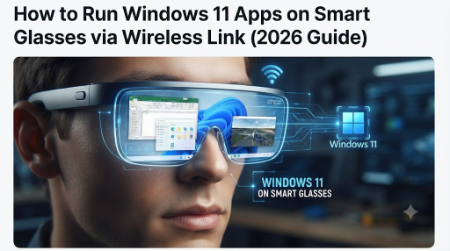
Imagine opening Excel, File Explorer, or your favorite game without ever touching a monitor. Today, it is fully possible to run Windows 11 apps on smart glasses, turning any pair of display-capable glasses into a private, portable screen. This guide breaks down everything you need to know — requirements, setup, best hardware, driver fixes, and troubleshooting — so you can get started today without wasting hours on trial and error.
What Does It Mean to Run Windows 11 Apps on Smart Glasses?
When people talk about how to run Windows 11 apps on smart glasses, they mean using the glasses as a wireless external display for a Windows 11 PC or laptop. The PC does all the processing; the glasses simply receive and show the video signal, the same way a wireless monitor works. Nothing installs on the glasses themselves, no special firmware, no app store — just a video stream sent over Wi-Fi. That single detail is what makes the whole setup so simple — there’s no operating system to install, no firmware update to chase, and no manufacturer account to create before you can start using it.
This distinction matters. Some people assume you need Windows running natively on the glasses hardware, but that isn’t how it works. Instead, your existing laptop handles every calculation, and the glasses act purely as a lightweight, wearable output device.
Why This Setup Matters in 2026
There are real, practical reasons more professionals and gamers now choose to run Windows 11 apps on smart glasses instead of relying on a traditional monitor:
- Portability — No monitor to carry; your entire display fits in a glasses case.
- Privacy — Only you can see the screen, which is ideal for working in cafes, flights, or open offices.
- Multi-monitor freedom — Extend your desktop anywhere, anytime, without hunting for a second screen.
- Cost savings — Many smart glasses cost less than a 27-inch external monitor.
- Ergonomics — You can adjust your posture freely instead of being locked to a fixed monitor angle.
These benefits explain why so many remote workers now run Windows 11 apps on smart glasses as their primary or secondary display setup, especially those who travel frequently or work from small spaces.
How the Wireless Connection Actually Works
The technology behind this is called Miracast, which runs over a peer-to-peer Wi-Fi standard known as Wi-Fi Direct. Unlike Bluetooth, Wi-Fi Direct can carry a full high-definition video signal with very low latency, which is exactly why Windows 11 chose it as the backbone for its native Wireless Display feature. No router is required, no pairing code needs to be entered on a separate app, and the entire handshake between devices typically completes in under ten seconds.
Because Wi-Fi Direct creates a direct link between your PC and the glasses, your regular internet Wi-Fi connection is not involved unless your adapter is shared between both tasks. Understanding this distinction is the key to avoiding lag during extended sessions, and it’s the single most overlooked detail in most troubleshooting guides online.
Requirements Before You Start
Before you can run Windows 11 apps on smart glasses, make sure you have the following:
- A Windows 11 PC or laptop with a Miracast-compatible Wi-Fi adapter (most machines from the last five years qualify)
- Display-capable smart glasses — such as XREAL One, Rokid Max, or Even Realities G2 — or a wireless HDMI adapter that accepts a Miracast signal
- Updated Wi-Fi and GPU drivers, since outdated drivers are the leading cause of connection failures
- A relatively open space, since Wi-Fi Direct range is shorter than standard Wi-Fi, usually under 10 meters
Step-by-Step: How to Run Windows 11 Apps on Smart Glasses
Step 1: Open Windows Settings
Go to Settings > System > Display on your Windows 11 PC. This is where all wireless display options live.
Step 2: Connect to a Wireless Display
Scroll down and click Connect to a wireless display. Windows will immediately begin scanning for nearby Miracast receivers, including compatible glasses and adapters.
Step 3: Pair Your Glasses
Power on your smart glasses or wireless adapter and put them in pairing mode. Select the device from the list that appears on your PC. Within a few seconds, your desktop will appear inside the lenses, right down to the cursor and taskbar, exactly as it looks on your laptop screen.
Step 4: Choose Mirror or Extend
Select Extend to use the glasses as an independent second monitor, or Mirror to duplicate exactly what’s on your laptop screen. Extend mode is generally better for productivity, while Mirror mode suits presentations or video playback.
Step 5: Launch and Arrange Your Apps
Open any application — a browser, Office, VS Code, or a game — and drag its window onto the glasses display using the mouse or Windows key plus arrow shortcuts. From here, everything behaves exactly like a normal external monitor, and you can run Windows 11 apps on smart glasses just as comfortably as on a desk-bound screen.
Best Smart Glasses to Run Windows 11 Apps in 2026
Not every pair of glasses has the display hardware needed to run Windows 11 apps on smart glasses. Here are the top options this year:
- XREAL One — Strong brightness, wide device compatibility, and reliable Miracast pairing.
- Rokid Max — Lightweight build, well suited for long work sessions.
- Even Realities G2 — Minimalist, everyday-wear design with solid display clarity.
Before buying, check the official Microsoft wireless display documentation to confirm Miracast certification, and browse independent hands-on coverage such as TechRadar’s smart glasses roundup for real-world performance notes before deciding which pair to buy.
Common Problems When You Run Windows 11 Apps on Smart Glasses
Most connection issues come down to three root causes:
- Lag or stutter — Usually caused by your Wi-Fi adapter handling both internet traffic and the display signal simultaneously.
- Frequent connection drops — Often a driver problem, or standing too far from the receiver.
- Glasses not detected at all — Pairing mode not enabled on the glasses, or outdated firmware blocking discovery.
Each of these is fixable in under five minutes using the tips in the next section.
Performance Tips for a Smooth Experience
- Connect your PC to the internet through Ethernet, if possible, so Wi-Fi bandwidth is fully dedicated to the display connection.
- Update GPU and network drivers regularly through Device Manager or your manufacturer’s utility.
- Stay within roughly 10 meters of the glasses with minimal walls or obstructions in between.
- Close unnecessary background apps and browser tabs to free up system resources and bandwidth.
- Restart the Wireless Display app from the Start menu if the connection becomes unstable mid-session.
Following these steps consistently ensures a smooth, low-lag session every time you run Windows 11 apps on smart glasses, whether you’re working, coding, or gaming.
Windows 11 Apps on Smart Glasses vs Traditional Monitors
Traditional monitors still win on color accuracy, screen size, and true multi-window multitasking. However, choosing to run Windows 11 apps on smart glasses wins decisively on portability, privacy, and setup time — you can be fully working within two minutes, without a single cable. For frequent travelers, freelancers, and anyone working from shared spaces, that trade-off often favors the glasses.
Real-World Use Cases
Beyond simple productivity, people are finding creative ways to run Windows 11 apps on smart glasses:
- Remote work on flights or trains — A full desktop experience without a laptop screen visible to seatmates.
- Coding in public spaces — Developers keeping proprietary code private while working from coffee shops.
- Casual gaming — Streaming a Steam or Xbox library onto a large virtual screen without a physical TV.
- Presentations — Mirroring a laptop for a quick, cable-free demo in a client meeting.
Is This Setup Secure?
Security is a fair concern with any wireless display technology. Miracast connections are encrypted at the protocol level, and because Wi-Fi Direct forms a closed, direct link between exactly two devices, there’s no open network for someone else to join or intercept. That said, always pair your glasses in a private space the first time, and rename your PC away from default names like “DESKTOP-XXXX” so it’s harder for strangers nearby to identify or spoof your device on a shared Wi-Fi Direct scan.
If you’re handling sensitive work — client data, financial spreadsheets, or proprietary code — it’s still good practice to lock your screen the moment you step away, exactly as you would with any monitor. The glasses don’t store or cache any data locally, since everything is rendered on your PC in real time and streamed frame by frame.
Battery Life and Power Considerations
Battery life varies widely between glasses models, typically ranging from two to six hours of continuous display use on a single charge. Brightness settings have the biggest impact — dimming the display for indoor use can meaningfully extend your session length. Most glasses also support charging via USB-C while in use, so pairing them with a small power bank is a practical way to work through a full day without interruption.
On the PC side, keeping a wireless display connection active does add a small amount of extra power draw compared to using the built-in laptop screen alone, mainly due to the Wi-Fi radio staying active. If you’re working from battery power, closing other Wi-Fi-heavy background tasks — cloud sync clients, video calls, or large downloads — helps preserve both your laptop’s battery and the stability of the display connection.
The Future of Running Windows 11 Apps on Smart Glasses
As glasses get lighter and Wi-Fi 7 becomes standard across laptops, expect latency to drop even further and battery life to improve. Analysts covering the wearable display market, including outlets like The Verge’s wearables coverage, expect this category to grow significantly through 2027 as more manufacturers make it easier to run Windows 11 apps on smart glasses right out of the box.
Quick Glossary of Terms
- Miracast — The wireless display standard built into Windows 11 that handles screen sharing without cables.
- Wi-Fi Direct — A peer-to-peer Wi-Fi connection method that links two devices directly, without needing a router.
- Extend mode — A display mode where the second screen acts as additional desktop space, separate from the main screen.
- Mirror mode — A display mode where the second screen shows an exact duplicate of the main screen.
- Miracast receiver — Any device, including certain smart glasses or HDMI adapters, capable of accepting a Miracast video signal.
Keeping these terms straight makes it much easier to follow driver update guides, adapter manuals, and troubleshooting threads if you ever run into an issue down the line.
Frequently Asked Questions
Do I need extra software to run Windows 11 apps on smart glasses?
No. Windows 11’s built-in Wireless Display feature uses Miracast, so no third-party app is required for basic functionality.
Do all smart glasses support this feature?
No — only display-capable glasses with Miracast support, or a compatible wireless HDMI adapter in between, will let you run Windows 11 apps on smart glasses.
Is there noticeable input lag while gaming?
Minor latency exists compared to a wired HDMI connection, but with updated drivers and a dedicated Wi-Fi channel, most users report it’s barely noticeable for casual play.
Can I use this setup for full-time work?
Yes, many remote professionals now run Windows 11 apps on smart glasses daily, especially when working from co-working spaces or while traveling.
For more Windows 11 guides, check our Windows tips section, and if you’re building a complete remote workstation, see our cloud computing guides for pairing this setup with AWS-based remote desktops.
Conclusion
Learning how to run Windows 11 apps on smart glasses opens up a genuinely new way to work and play — private, portable, and completely cable-free. With the right glasses, a Miracast-compatible PC, and a few driver updates, anyone can run Windows 11 apps on smart glasses within minutes, without spending money on a traditional monitor at all.